

Quick honesty check. How many people sincerely intend to make a home inventory and then quit somewhere around the third appliance? Most of us. The reason is always the same. Typing.
Typing "Frigidaire FFHT1425VV" off a sticker on the back of a fridge. Typing "WP2218FA-RZF03" off the label inside the door. Squinting at a serial number written in 4-point text. After three appliances you're exhausted, and the inventory project goes back on the someday pile.
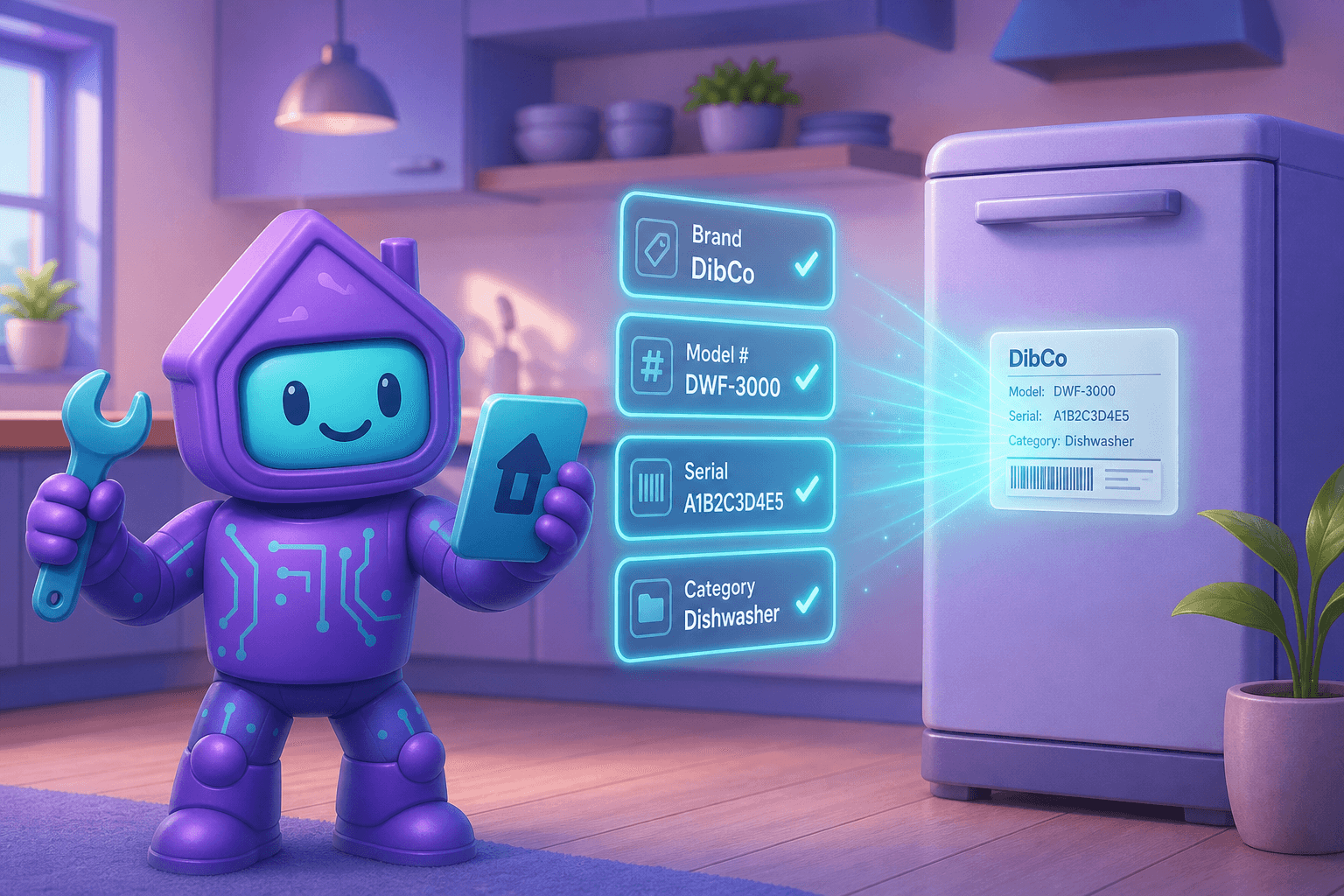
This is exactly the problem Smart Add solves. Smart Add is Dib's AI photo recognition feature: you point your phone at a thing (or its sticker), and the AI pulls out the brand, model, serial, and category automatically. No typing. No squinting. No giving up on item number four.
What is Smart Add?
Smart Add is an AI-powered way to build a home inventory by snapping photos. You photograph the item, the sticker, or the receipt, and Dib's vision model extracts the structured details: what it is, who made it, what model, what serial, and what room it probably belongs in. The result drops straight into your inventory with everything filled in.
In practice it turns a "type 30 things into a form" job into a "walk around with your phone for 10 minutes" job.
Why this changes the math on home inventories
We covered the benefits of a full home inventory in detail in our home inventory 101 post. Short version: insurance claims, warranty tracking, estate planning, moving, and downsizing all get dramatically easier when you have a clean record of what you own.
The catch has always been that building the inventory is the hard part. Smart Add changes the math because:
- It's fast. Most items take under 5 seconds end-to-end.
- It's accurate. Reading a sticker off a high-resolution photo is much more reliable than reading it through a phone screen at arm's length and typing it out.
- It's batchable. Walk a whole room, snap stickers, batch-process. Done in one sitting.
- It catches the boring details. Model and serial numbers are what insurance actually wants. Smart Add captures them without you ever typing them.
How Smart Add works
Multiple photo types, one feature
You can use Smart Add in a few ways depending on what's easiest:
- Photo of the item itself. A snapshot of your TV or your KitchenAid mixer. The AI recognizes what it is and fills in best-guess details.
- Photo of the spec sticker. The label on the back, side, or bottom that has the model and serial. Smart Add reads it and extracts everything.
- Photo of the receipt. Captures the purchase date, price, and vendor along with the product.
- Multiple items in one photo. Open a cabinet, snap one photo, get a list of tools. Open a drawer, snap, get a list of small appliances. The AI separates them into distinct items.
What it pulls out
For most items, Smart Add can extract some or all of:
- Brand and manufacturer
- Model number
- Serial number
- Category (appliance, electronics, furniture, tools, etc.)
- Likely room (refined by you)
- Purchase date and price (when reading a receipt)
- Photo of the item attached to the entry
You stay in control
Smart Add never silently saves. It proposes the entry, you review and adjust, you confirm. If the AI got the model wrong (rare, but it happens), you fix it in one tap. The bar is "much faster than typing," not "magic that never makes mistakes."
It plays nicely with the rest of Dib
Items added by Smart Add immediately participate in everything else: recall watching, warranty tracking, maintenance reminders, and your overall inventory. There's no separate "Smart Add stuff" silo.
Picture this
You decide today's the day. You're going to inventory the kitchen. You walk over with a coffee.
- Tap Smart Add. Snap a photo of the fridge sticker. Done.
- Open the dishwasher door, snap the inner-door sticker. Done.
- Range, range hood, microwave. Stickers, snaps, done.
- Open the coffee maker bag and find the receipt. Snap. Done.
- Open the small appliance cabinet. One photo. Three appliances added.
Ten minutes later your kitchen is fully inventoried. Coffee's not even cold yet. You repeat in the living room, the laundry, the garage. By the end of an afternoon you've documented hundreds of dollars of stuff, with model and serial numbers, ready for insurance and warranty tracking.
Now compare that to typing every label by hand. It's the difference between doing the thing and never doing the thing.
Tips to get more out of Smart Add
- Get the sticker, not just the item. A photo of your dishwasher captures "dishwasher." A photo of the sticker on the door frame captures "Bosch SHPM78Z55N, serial FD9301 12345." Both are useful, the sticker is gold.
- Use it for the boring categories. Tools, kids' gear, electronics behind the TV, kitchen gadgets. These are the items most people skip in a manual inventory because they're tedious. Smart Add makes them easy.
- Batch your rooms. Take a focused 15-minute pass through one room rather than doing one item here and one item there. Momentum matters.
- Don't waste shots on consumables. Cereal boxes, cleaning supplies, perishables. Smart Add is for durable goods worth tracking.
- Re-snap if a reading looks off. Bright glare on a sticker can confuse any OCR system. Move the phone, retry, done.
Frequently Asked Questions
What kinds of items does Smart Add handle best?
Items with visible spec stickers do best: appliances, electronics, power tools, HVAC equipment, and the back of most furniture from major brands. Items without stickers (a couch, a painting, a rug) get recognized by category and look, but the model and serial fields will be blank. You can still add useful details by hand or with a receipt photo.
What if Smart Add misreads a model or serial number?
You review every Smart Add result before saving. If a character is off, you tap to correct it. Smart Add is meant to dramatically reduce typing, not eliminate the human in the loop.
Does it work with multiple items in one photo?
Yes. Open a cabinet or drawer, take one photo, and Smart Add will pull out separate items for each thing it recognizes. It works especially well in pantries, tool cabinets, and small-appliance cabinets.
Can I add receipts the same way?
Yes. Snap a photo of a receipt and Smart Add extracts the date, vendor, items, and prices. It links the receipt to the item entry so you have proof of purchase tied to the product. This is especially helpful when warranty time comes around.
Does my data stay private?
Photos and extracted details are stored under your household's account only. They're never used to train public models, and they're not visible to anyone outside the people you've shared with.
Can I use Smart Add on stuff I already own without receipts?
Absolutely. Most people start that way. The receipt is a nice bonus, but the inventory entry (with brand, model, serial, and photo) is the part that does most of the work.
Ready to skip the typing?
Pick one room. Spend ten minutes walking through it with Smart Add. You'll have a better inventory than 95% of homeowners by the time your coffee gets cold.